Disable automatic restart after Windows Updates
Since we need MetaTrader to run 24/7, we cannot afford the Windows Server to restart automatically during Windows Updates.
The instructions below will show you how to disable the automatic restart that can happen during Windows Updates.
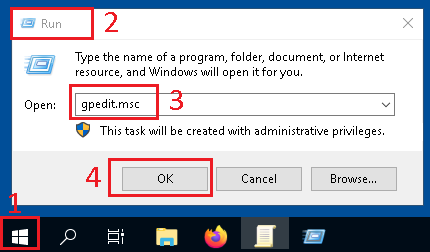
- Use the
WindowsKey+Rkeys to open theRunwindow, or search forRunin theStart Menu - The
Runwindow should open - In the
Openfield, typegpedit.msc - Click
OKto confirm
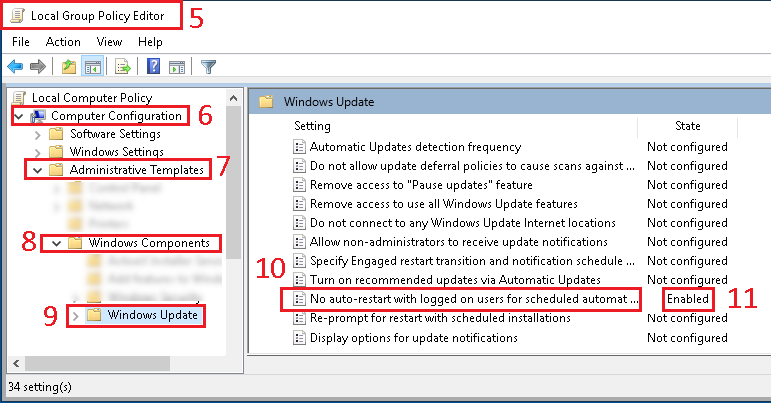
- A new
Local Group Policy Editorwindow should open - On the left side of the window, select and unfold
Computer Configuration - Then select and unfold
Administrative Templates - Then select and unfold
Windows Components - Then select and unfold
Windows Update - In the right part of the window, look for
No auto-restart with logged on users for scheduled automatic updates - Double click on it and change the value to
Enabled