Reboot and MetaTrader Monitoring
The second step to monitor that your Windows Server (VPS) is working correctly is to ensure that you get alerted when it restarts, and you get alerted if one or more MetaTrader program stops running (crashes or is closed).
To do that, we will use a PowerShell Script running in the Task Scheduler of your VPS.
The PowerShell Script will send alerts using Telegram, so you will need a Telegram Bot to receive the alerts.
If you don't already have a Telegram bot, this documentation will show you how to create one.
Unzip the ZIP archive to obtain the scripts (if not done already)
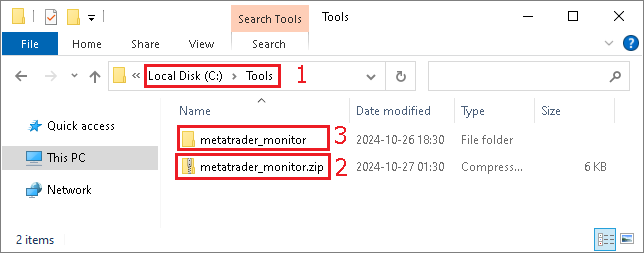
- On your VPS, on the
C:\drive, create a folder namedToolsif not already present - In this folder, extract the
metatrader_monitor.ziparchive - You should obtain a folder named
metatrader_monitor.
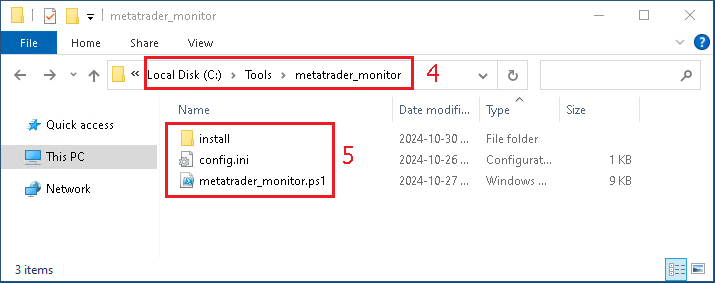
- Make sure that the path of the folder is exactly
C:\Tools\metatrader_monitor - And that you have those files in it
Create a Telegram Bot to receive alerts

- On Telegram, search for the user
BotFatherand open the conversation
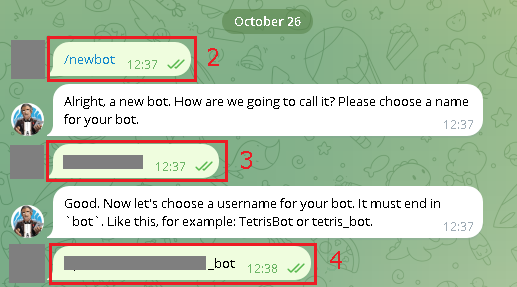
- Type the command
/newbot - Then provide the
Nameof your bot - And provide the
Usernameof your bot
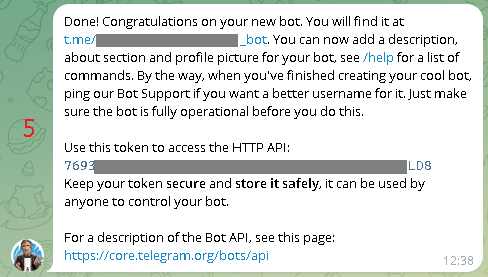
- You will receive a message saying that your bot has been created successfully.
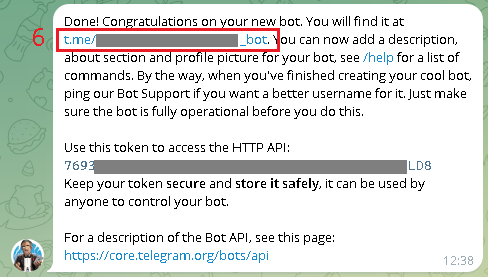
- Click on the link to start the conversation with your bot

- By default your bot does not have the right to initiate a conversation, so you will have to be the one sending the first message to your bot to initiate the conversation.
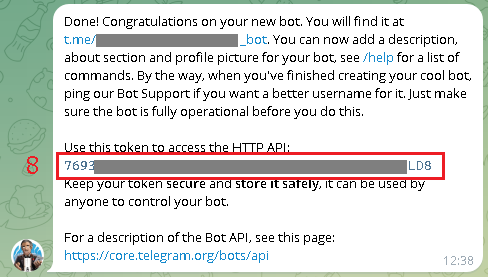
- Also make a note of the Bot Token, we will use it later
Obtain your Telegram Chat ID

- On Telegram, search for the user https://t.me/userinfobot, and open the conversation
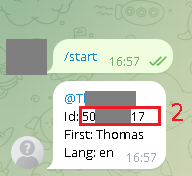
- Send a random message, you will receive a response with your User ID. Make a note of this number, we will use it later.
Configure the PowerShell script to receive Telegram alerts
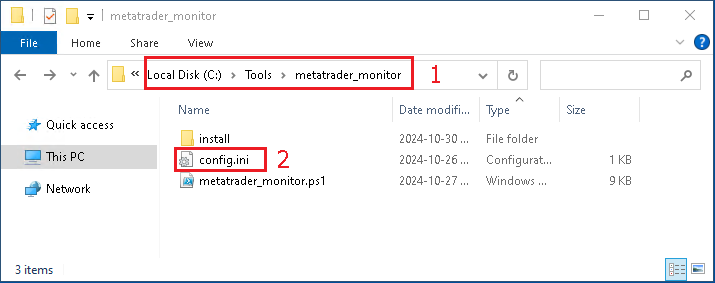
- On the VPS, open the folder
C:\Tools\metatrader_monitor - And locate the file
config.ini

- Open the file, and define the Telegram Bot Token and the Telegram Chat ID that you have obtained earlier, and save the changes.
- To schedule the
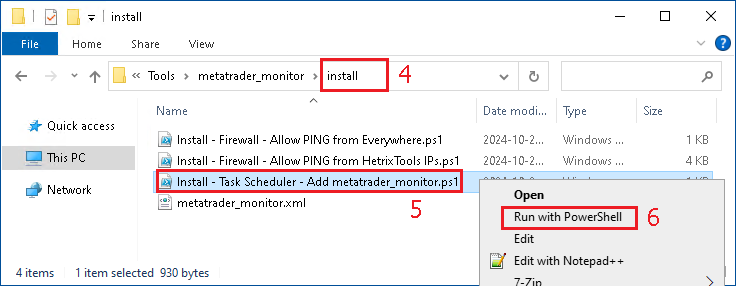
PowerShellscript automatically, go in theinstallfolder - Do a
right clickonInstall - Task Scheduler - Add metatrader_monitor.ps1 - And select
Run with PowerShell.

- It's possible that you will see a warning message, you will have to confirm by typing "Y".
-
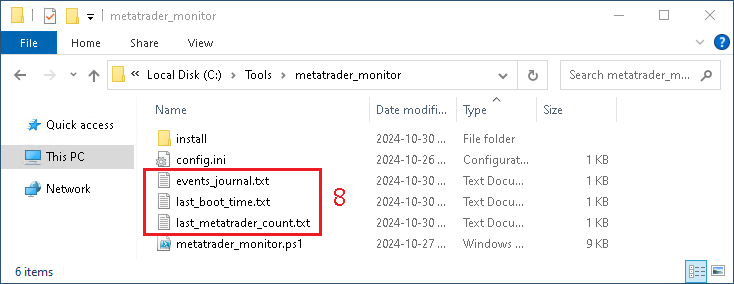
Wait 2 minutes, the script should automatically be executed by the
Task Scheduler, and you should see 3 text files created. -
The file
last_boot_time.txtcontains the date and time of the last restart of the computer -
The file
last_metatrader_count.txtcontains how many MetaTrader process were seen during the last execution of the script -
The file
events_journal.txtis simply a journal, and is keeping track of what the script is doing
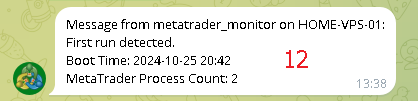
- You should also receive a Telegram message to tell you that the script has been initialized correctly.
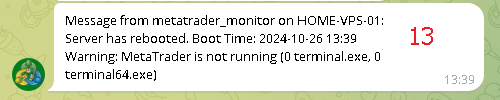
- When the server restarts, you should receive a Telegram message

- When a MetaTrader program is closed, you should receive a Telegram message

- And if there is no MetaTrader program running anymore, you should receive a Telegram message
Troubleshooting problems
If you have a problem with the Telegram messages not arriving, you can re-read this documentation to make sure you did everything correctly.

- If everything was done correctly and you are still not receiving Telegram messages, open the script
metatrader_monitor.ps1with a text editor, and on line 6, change the value of$falseto$true. This will show more messages on the screen and it should help you to understand what is the problem.
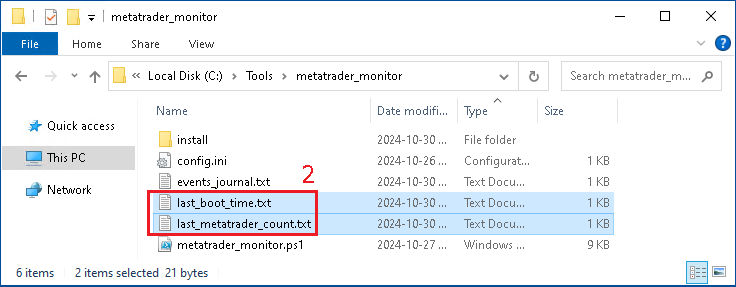
- Delete the text files
last_boot_time.txtandlast_metatrader_count.txtthat have been created, they will be re-created
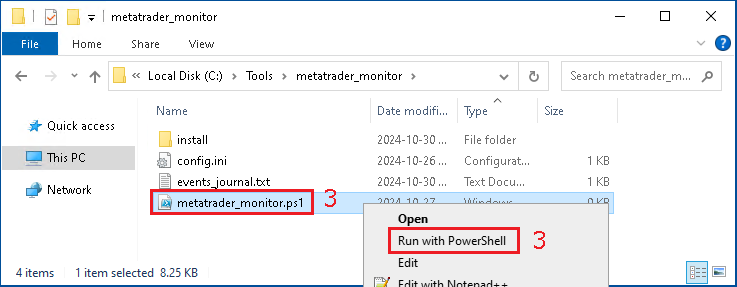
- Execute the script manually, by doing
right click, and selectingRun with PowerShell

- Look if there's an error message in the script