Ping Monitoring
The first step to monitor that your Windows Server (VPS) is working correctly is to ensure that it is powered on and reachable on internet.
To do that, we will use a Ping Monitoring, from an external website, like HetrixTools.
Unzip the ZIP archive to obtain the scripts (if not done already)
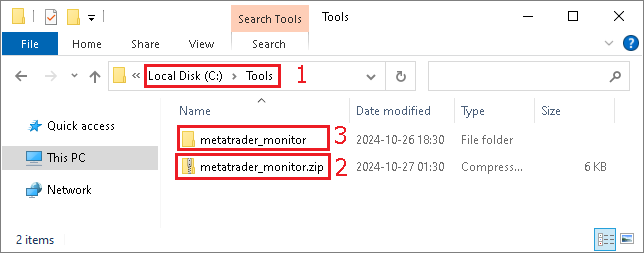
- On your VPS, on the
C:\drive, create a folder namedToolsif not already present - In this folder, extract the
metatrader_monitor.ziparchive - You should obtain a folder named
metatrader_monitor.
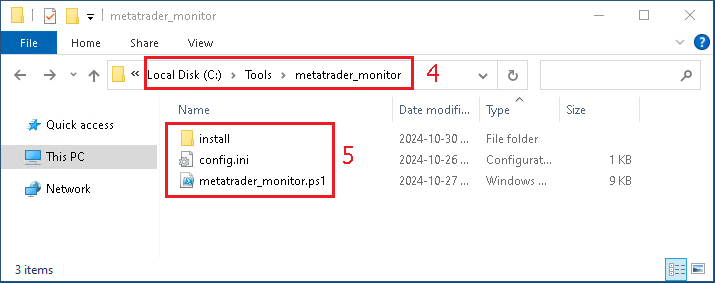
- Make sure that the path of the folder is exactly
C:\Tools\metatrader_monitor - And that you have those files in it
Make sure your Windows Server is responding to Ping
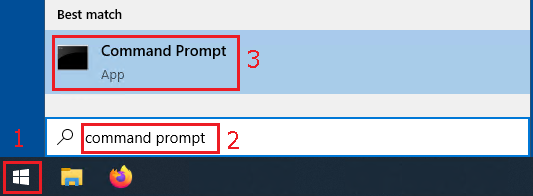
- From your local computer, not from the VPS, open the
Windows Startup Menu - Type or search for
Command Prompt - Click on
Command Promptto launch the program
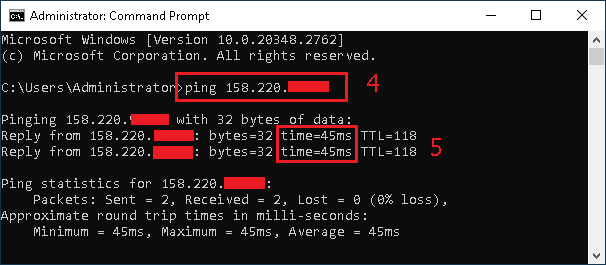
- In the new window, type the command
ping, followed by the IP address of your VPS. - If you see lines containing
time=XXms, it means that the VPS is powered on and reachable with Ping - If you see that the lines contains
time<1ms, it probably means that you are trying to ping your VPS from the VPS itself, and therefore this is not a valid test. You need to try to ping the VPS from your computer.
Allow Ping (if not already allowed)
- If the
Pingtest is not working, we will have to allowPingin theWindows Firewall.
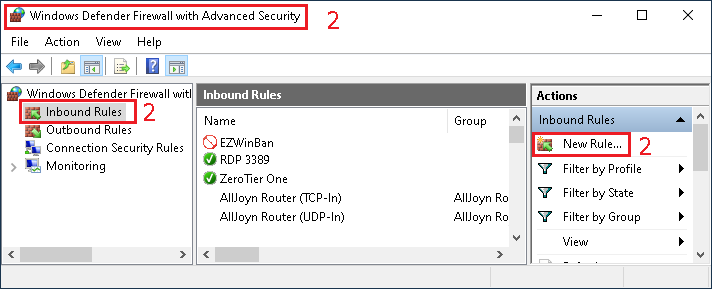
- You can do that manually, by opening the
Windows Defender Firewalland add a new ICMPv4 Rule, by clicking onNew Ruleand creating aCustomrule with the protocolICMPv4
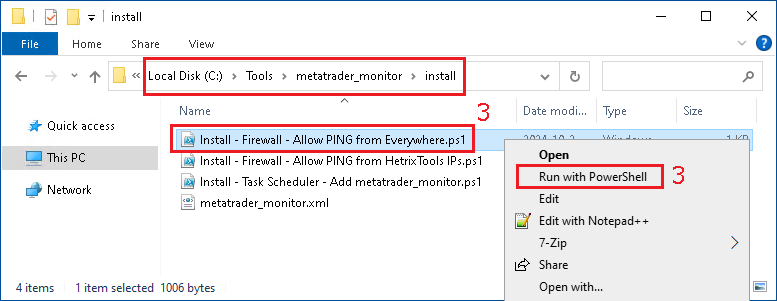
- Or you can go in the
C:\Tools\metatrader_monitor\installfolder and execute the scriptInstall - Firewall - Allow PING from Everywhere.ps1, by doingright click,Run with PowerShell

- After starting the script, you should see a blue window telling you that the rule has been created in the Windows Firewall.
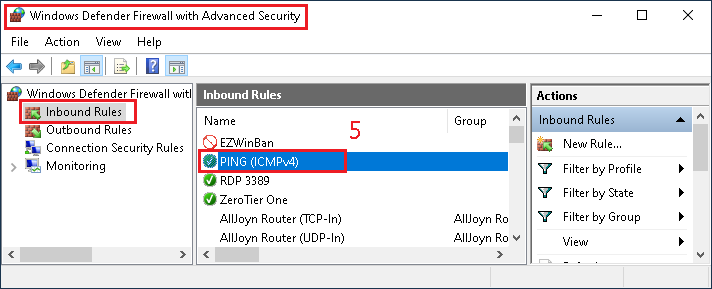
- You can verify that the Ping rule has been added to the
Windows Firewall
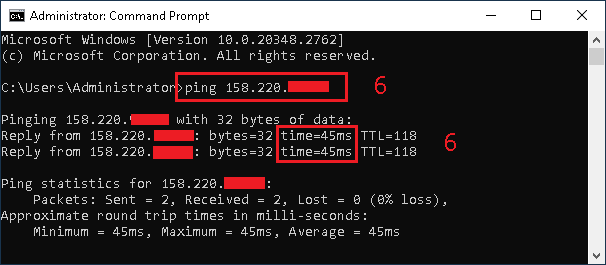
- Repeat the ping test from the
Command Promptto confirm that your VPS is now responding to ping
Use HetrixTools to monitor the PING response of your VPS
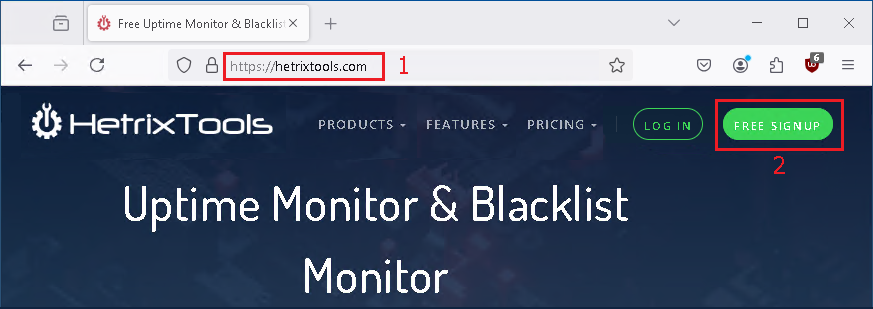
- From you web browser, open the website https://hetrixtools.com
- If you don't have an account already, click on
FREE SIGNUP
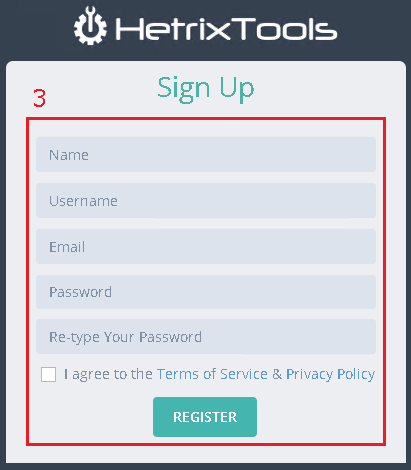
- Fill the form with your information, create your account, then login into your account
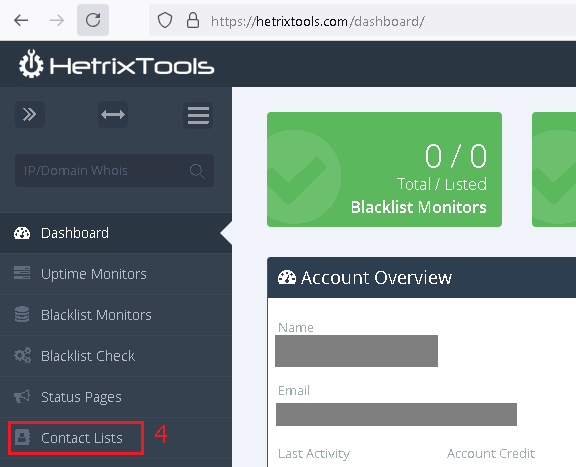
- In the menu on the left, select "Contacts List"

- In the list of the contacts, you can see that the
Telegramnotification is not enabled by default (grey color) - Click on the edit icon to change the settings of this contact

- In the
Telegramsection, click onGuide: Telegram Integration, you will be told that you need to send a message to the HetrixTools Telegram bot (https:/t.me/hetrixtools_bot)
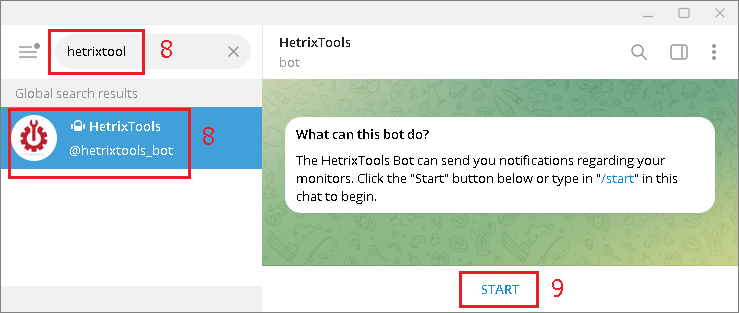
- In
Telegram, search for this bot - And send him a message

- In response, you should obtain your ChatID. Copy this number.

- Back on the HetrixTools website, paste your ChatId in the text area
- And click on
Send test notification

- You should receive a Telegram notification from the HetrixTools bot

- Now, on the
Contact List, theTelegramnotification is now enabled (blue)
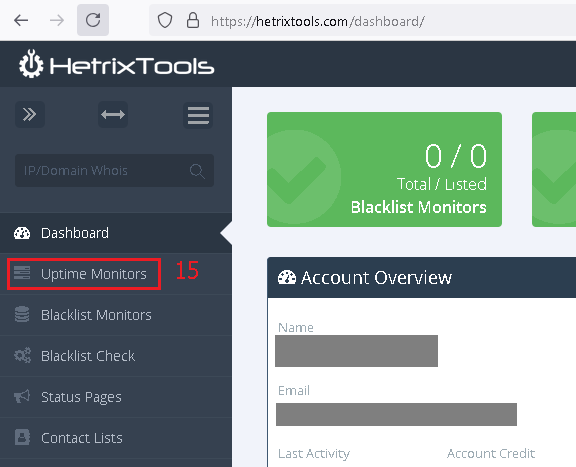
- In the menu on the left, select
Uptime Monitors
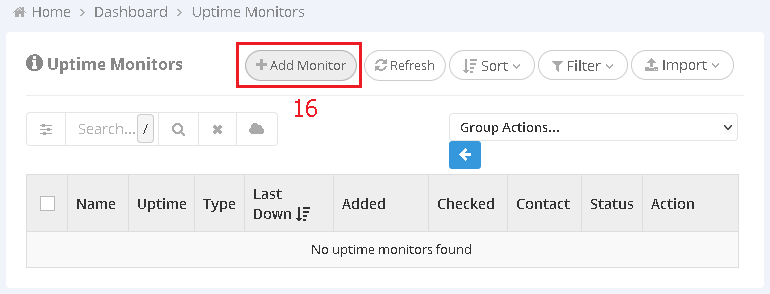
- In the new window, click on
Add Monitor
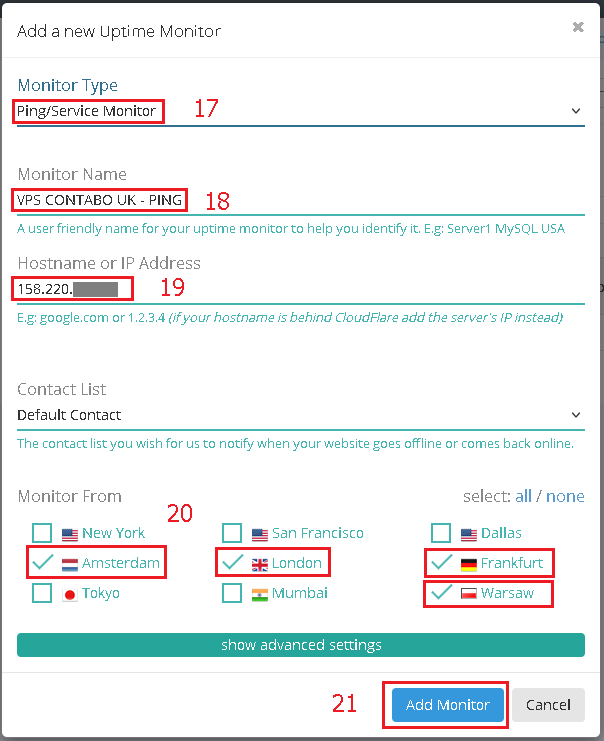
- In the new window, select
Ping/Service Monitor - Then provice a nice name of the monitor
- And provide the Public IP address of your VPS
- Then you will have to select 4 different monitoring locations. Pick the cities that are the closest to your VPS
- And finally, click on
Add Monitor
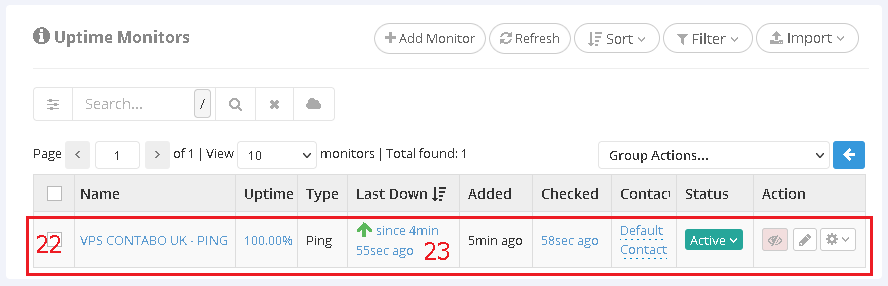
- Back in the Monitor window, you should now see the
New Monitorwith the name of your VPS - If you wait couple of seconds, you should see that
HetrixToolswas able to verify that your VPS was reachable byPing - If your VPS is turned off or is unreahable,
HetrixToolswill send you a notification.