EZWinBan
By default, the Windows Remote Desktop does not block failed login attempts.
This means that people can trying to brute-force the Windows Remote Desktop password of your VPS to try to get in, and nothing will block them from trying as many passwords as they want.
We can use a program called EZWinBan to secure the Windows Remote Desktop.
This program will monitor the failed login attemps, and block the IP addresses of the persons trying to login with the wrong password.
This also means that if you make a mistake in the password too many times, you will also be blocked for the specified duration, unless you whitelist your own public IP (but your IP address must be static for the whitelist to work).
Follow the instructions below to install and configure EZWinBan.
Installation
Automatic installation (using the installer script)
- On the Desktop, open the
Trading Filesfolder - Then open the
Installersfolder - Then open the
EZWinBanfolder - Launch the
Install-EZWinBan.cmdscript - Wait for the black window to finish
Manual installation
1. Obtain install files
- Open the GitHub Release page of EZWinBan and download the latest version of the installer of
EZWinBan - Save the installer in the
Trading Filesfolder, in a folder calledExecutables.
2. Install
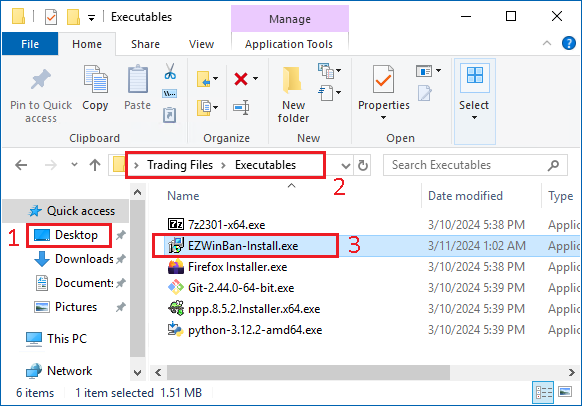
- From the
Desktop - Open the
Trading Filesfolder, thenExecutables - Launch the
EZWinBan-Install.exeinstaller

- In the new window, click on
Install
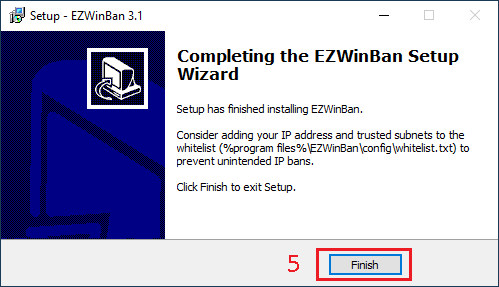
- Click on
Finish
Configure EZWinBan
You can adjust the settings of EZWinBan to change the frequency of the checks and the duration of the bans.
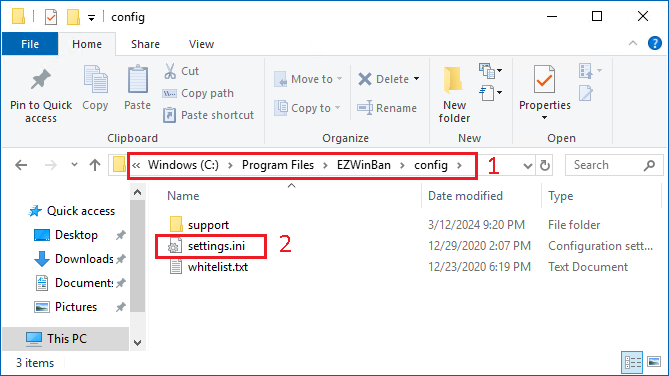
- Open the folder
C:\Program Files\EZWinBan\config - Open the file
settings.ini
Default configuration
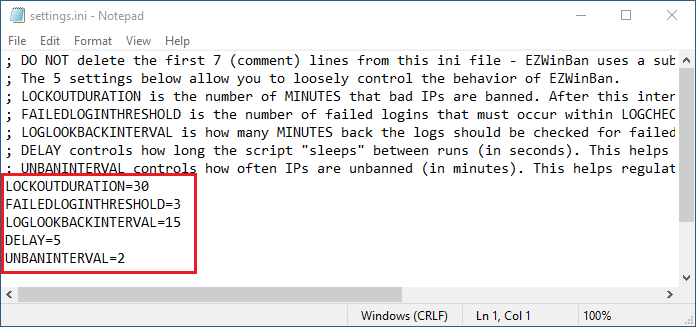
Below is a screenshot of the default configuration of EZWinBan.
You can see that EZWinBan will verify every 5 seconds for new failed login attempts.
If it finds an IP Address that made more de 3 failed login attempt in the last 15 minutes, it will block this IP Address for a duration of 30 minutes.
Suggested configuration
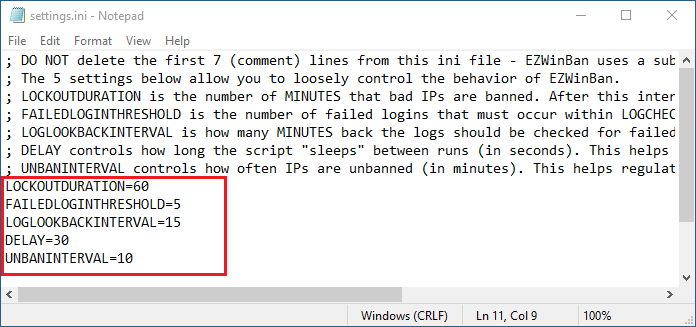
We can improve the settings by using the settings below:
- Check only every 30 seconds for failed login attempts
- Check only every 10 minutes for blocked IPs to unblock
- Increase the number of allowed failures from 3 to 5
- Increase the block duration from 30 minutes to 60 minutes