BgInfo
BgInfo is a small program that runs in the background every couple of minutes that refresh informations about the computer and shows nice statistics on the Desktop.
This is not a mandatory thing to install, but it is very useful when you have multiple VPS with different Cloud Provider or in different cities, as it's helping you to know on which VPS you are currently connected.
Once installed, you should see informations about your VPS on the top right corner of the screen.
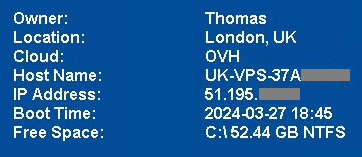
Note: If you plan to install BgInfo, you first need to install Bash and JQ.
Installation
Automatic installation (using the installer script)
- On the Desktop, open the
Trading Filesfolder - Then open the
Installersfolder - Then open the
BgInfofolder - Launch the
Install-BgInfo.cmdscript - Wait for the black window to finish
Manual installation
1. Obtain install files
- Open the BgInfo Download page and download the BgInfo Zip file
- Save the ZIP file in the
Trading Filesfolder, in a folder calledTools.
2. Install
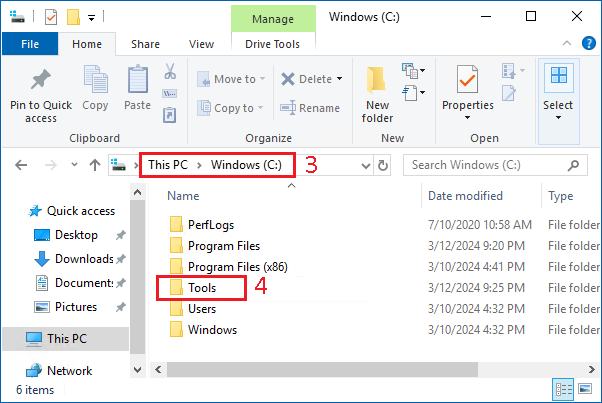
- Open
This PC, then go on theC:\drive - Create a new folder called
Tools
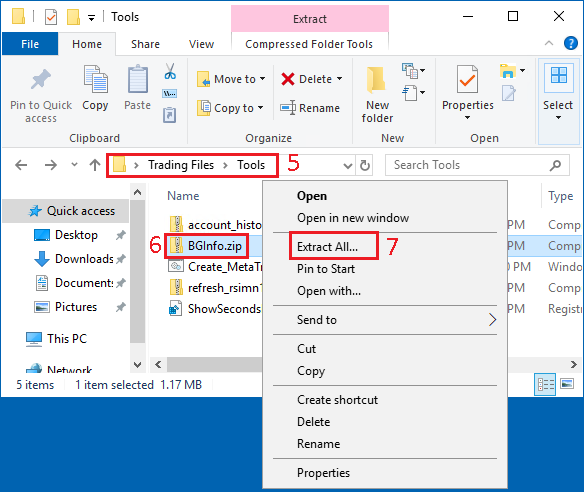
- From the Desktop, open
Trading Filesfolder, thenTools - Right click on the archive
BgInfo.zip - Click on
Extract All...
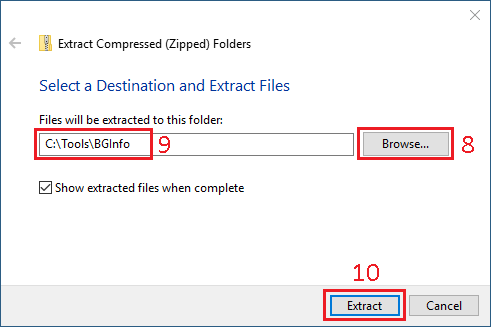
- In the new window, click on
Browse - And browse to select the folder
C:\Toolsso the export path showsC:\Tools\BgInfo - Click on
Extractto extract the content of the archive
-
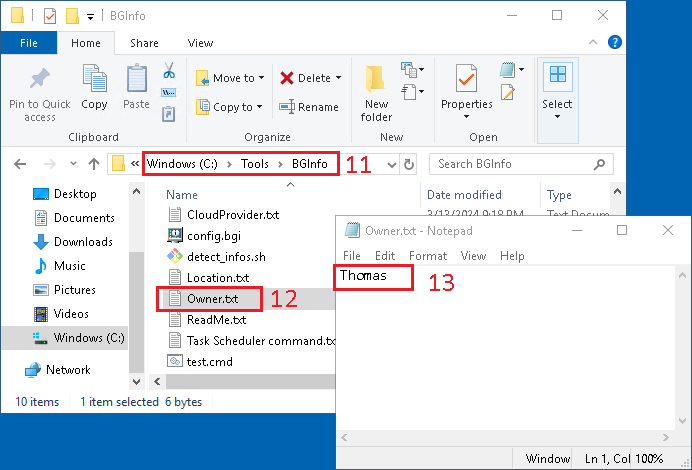
Go to the
C:\Tools\BgInfofolder that has just been created -
Create a new text file named
Owner.txt -
Define your name in it, and save the changes
-
Download the detect_infos.sh script
-
Save it as
detect_infos.shin the folderC:\Tools\BgInfo -
Download the config.bgi file
-
Save it as
config.bgiin the folderC:\Tools\BgInfo -
Download the task_scheduler.xml file
-
Save it as
task_scheduler.xmlin the folderC:\Tools\BgInfo
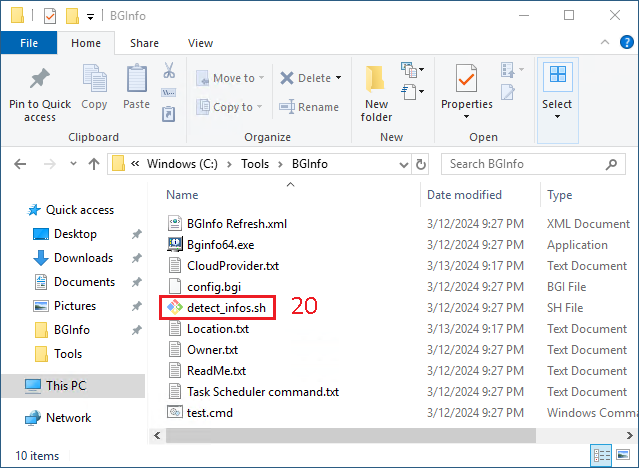
- Run the bash script
detect_infos.sh
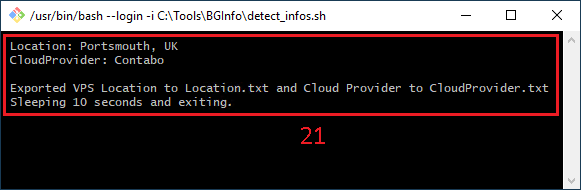
- In the new black window, it should detect the
LocationandCloudProviderof your VPS
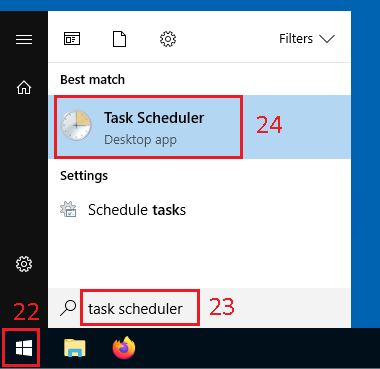
- Open the Windows Start menu
- Type
Task Scheduleror search for it - Once found, click on it
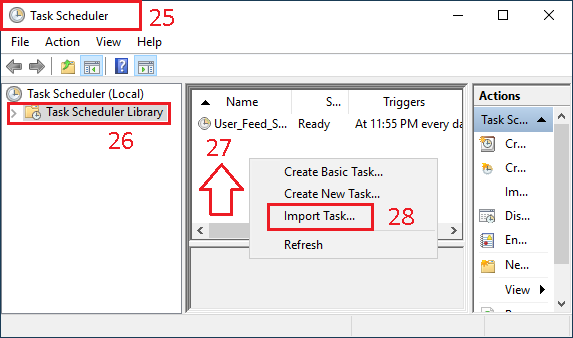
- In the
Task Schedulerwindow that has just open - Click on
Task Scheduler Library - Do a right click in the white part of the central window
- You should see a small menu appearing, click
Import Task...
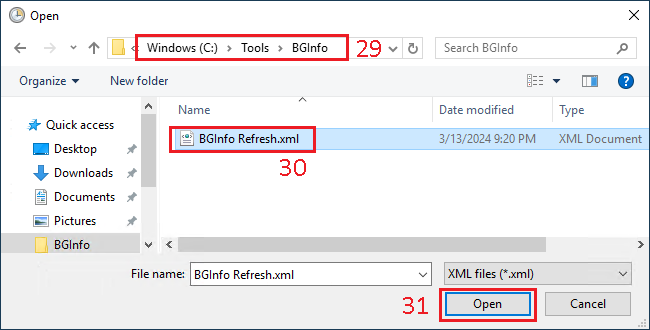
- In the new
Openwindow, browse to the folderC:\Tools\BgInfo - Select the file
BgInfo Refresh.xml - Click
Open
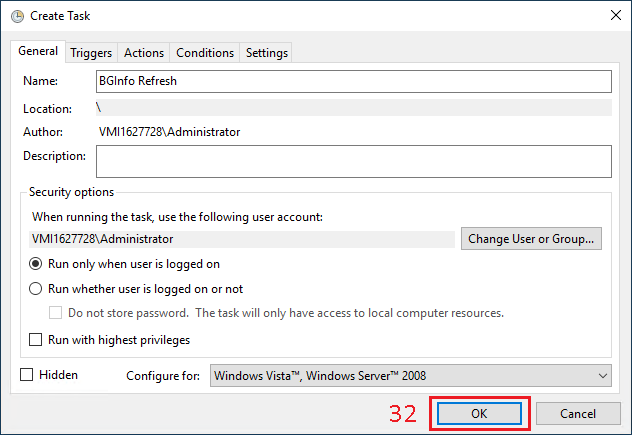
- In the new
Create Taskwindow that has open, clickOK
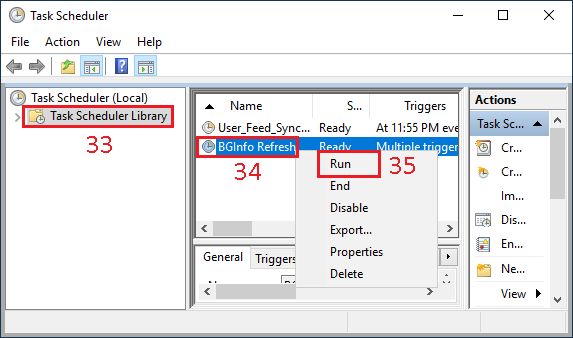
- Back to the
Task Scheduler Library - You should see a new
BgInfo Refreshline, do right click on it - In the menu, click on
Run
- On the
Desktop, you should see the informations about your VPS