Install MetaTrader for a specific broker and account number in the right folder
On this page, we will install MetaTrader for a specific broker and account number in the right folder structure, for a clean installation.
If you have been using the script to create the MetaTrader installation folder in the previous step of the documentation, we will be using the output of the script to help us during the installation process.

1. Launch the installer
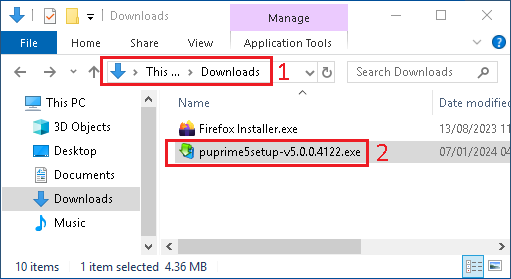
- Open the
Downloadsfolder - Run the MetaTrader installer for the right version of MetaTrader and the right broker
2. Customize the installation path
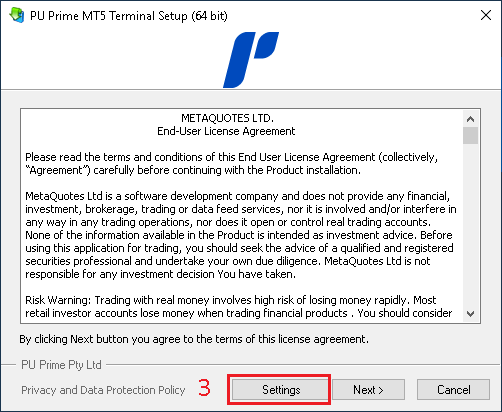
- Click on
Settingsto customize the installation path
3. Provide the right installation path
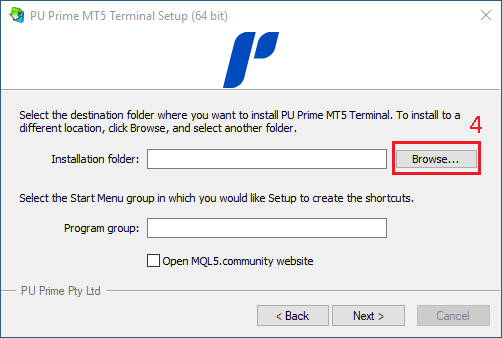
- In the
Installation folderfield, clickBrowse
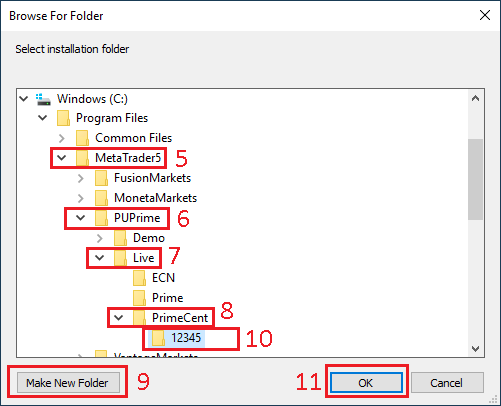
- In the
Browse For Folderwindow, selectC:\Program Files\MetaTrader5 - Then select the folder of the
Broker(i.e.,PUPrime) - Then select the folder
LiveorDemo, depending if it's aLiveor aDemoaccount - Then select the folder matching the
Account Type(i.e.PrimeCent) - If the folder named after the
Account Numberdoes not exist, click onMake New Folderto create a new folder - Name the new folder after the
Account Number(i.e.12345) - Select the
Account Numberfolder and clickOKto validate
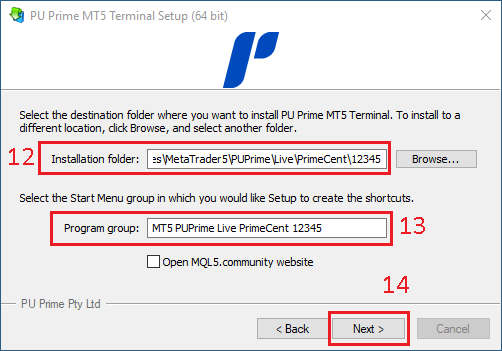
- Back to the previous window, the
Installation folderfield should match the following syntax:C:\Program Files\MetaTrader5\BrokerName\LiveOrDemo\AccountType\AccountNumber
- In the
Program groupfield, name the program after the same syntax logic. You can copy the value fromInstallation folderand replace the backslashes by spaces and reducingMetaTrader5toMT5:MT5 <BrokerName> <LiveOrDemo> <AccountType> <AccountNumber>- In this example, it will be
MT5 PUPrime Live PrimeCent 12345
- Click on
Next
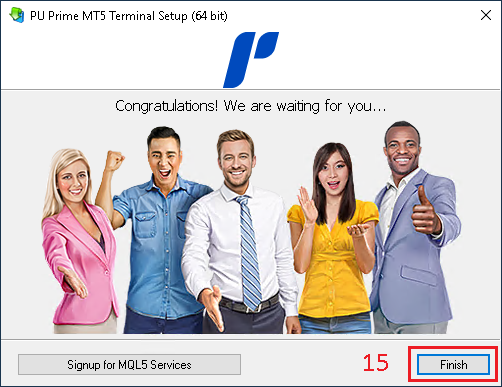
- The installation is over, click on
Finishing
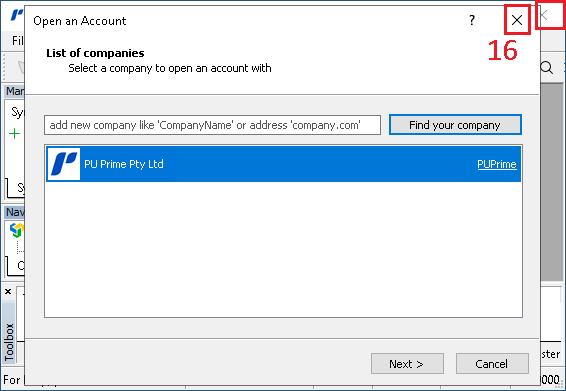
MetaTradershould open automatically, you can close the window.