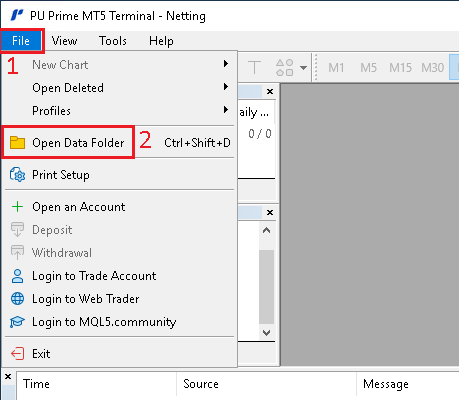
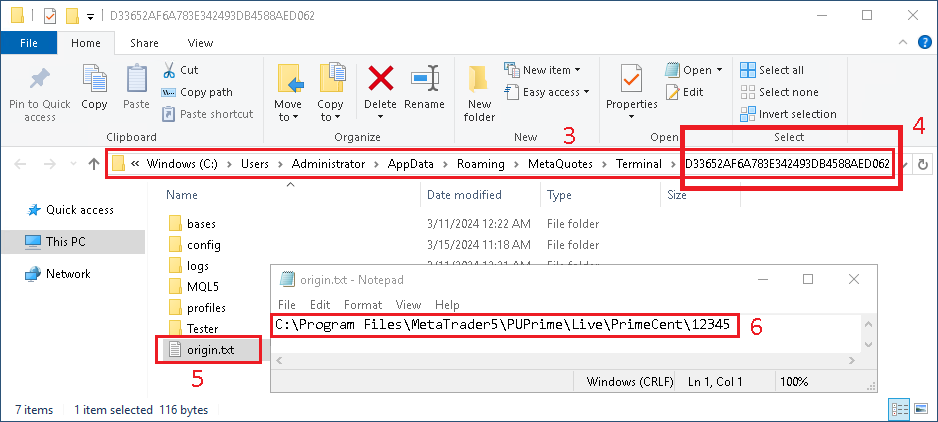
A new window should open in C:\Users\<username>\AppData\Roaming\MetaQuotes\Terminal\<UniqueFolderIdentifier>
Look at the long string at the end of the folder path. This string is a Unique Identifier for the Data Folder of that very specific MetaTrader5 installation. Remember this Unique Identifier, we will use it later.
To confirm this Data Folder is for the right MetaTrader5 account, open the origin.txt file
And confirm that the installation path of MetaTrader match the broker and account you expect to use. You can then close the text file.
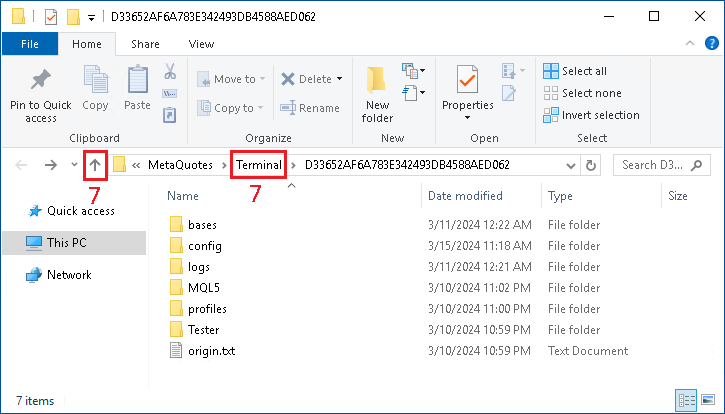
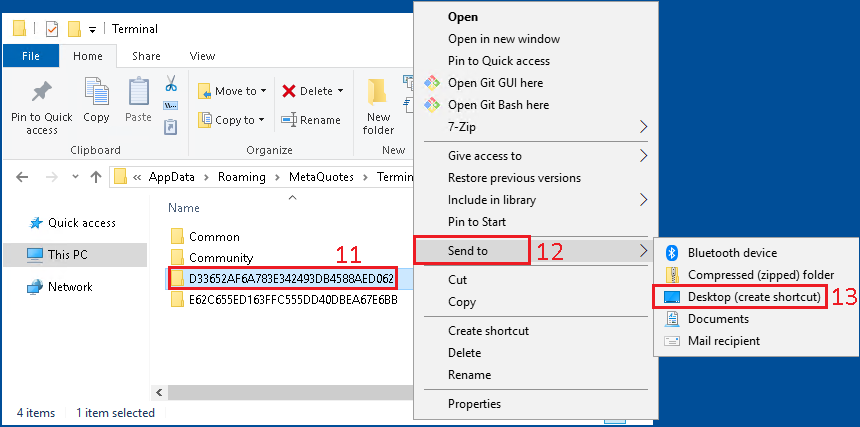
We will want to go up one folder, to the Terminal folder. You can do that by clicking on the Up Arrow, or on Terminal
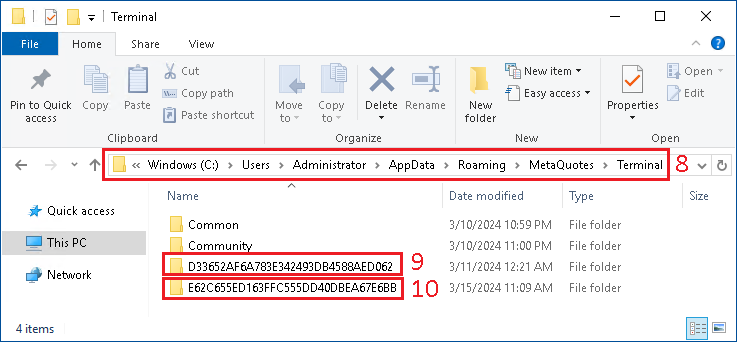
You should now be in the Terminal folder
This folder should contain the folder with the Unique Identifier that you are interested in.
It could even contains multiple folders with Unique Identifiers, depending on how many MetaTrader5 are installed already.
Do a right click on the folder that match the Unique Identifier of the MetaTrader5 account you are interested in.
In the right click menu, select Send to
Then select Desktop (create shortcut)
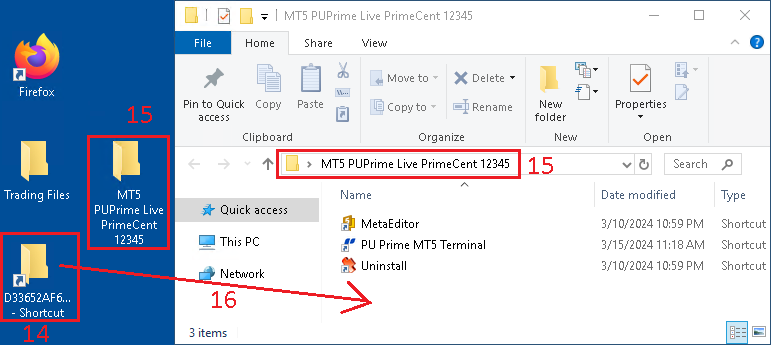
Go back to the Desktop and locate the new shortcut icon that has been created for this Unique Identifier folder
Find the MT5 shortcut folder for that account and open it
Move (Drag-and-drop) the Unique Identifier shortcut icon into the MT5 shortcut folder of the account
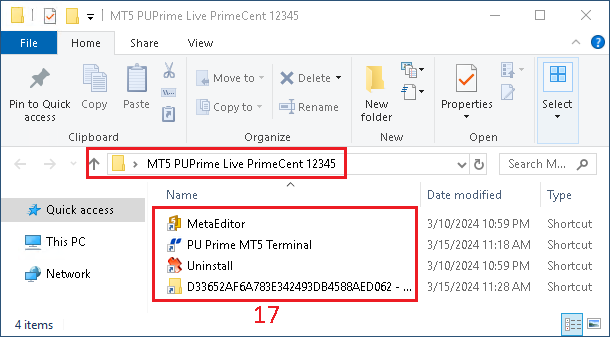
You should end up with a shortcut to the Unique Identifier Data Folder inside the MT5 shortcut folder of that specific account