Create MetaTrader installation folders
Because you might want to run multiple Expert Advisor at the same time, you will have to install multiple instances of MetaTrader.
Since some of those MetaTrader might be using different brokers, account types and accout numbers, I highly suggest to use a very specific folder structure to be able to keep the different installation files separated and ensure that we will know precisely which folder is used by which broker, account and bot.
The suggested installation path is C:\Program Files\MetaTrader5\<Broker>\<LiveOrDemo>\<AccountType>\<AccountNumber>.
Example:
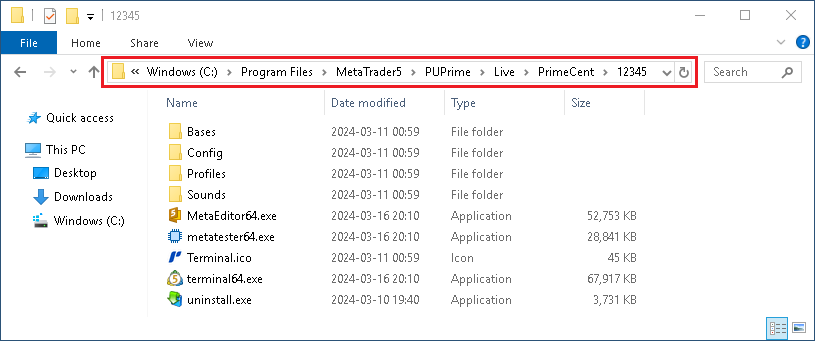
Create the installation folder
Automatically create the installation folder
You can use the script create-mt5-install-folder.cmd to simplify the creation of the folder for the specific Broker, Server Type, Account Type and Account Number.
Download the file, and save it in the Trading Files/Tools folder on the Desktop, then execute it.
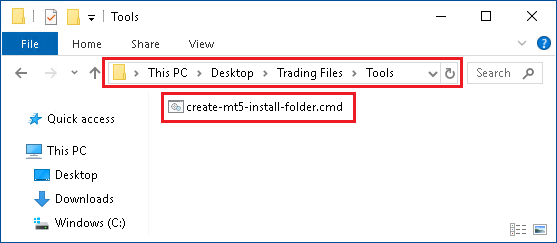
You will have to input the Broker Name, Server Type, Account Type and Account Number.
The script will output the path of the folder that has been created (Installation Path), and the name of the Shortcut to use during the installation of MetaTrader5.
You can then use the output of this script to help you during the installation of MetaTrader.

By default the script only support the Brokers and Account Types that I'm using, but you can easily update the script to add your own Brokers and Account Types.
Manually create the installation folder
- Open the
C:\Program Filesfolder - Create a
MetaTrader5folder if it does not exist already - In this
C:\Program Files\MetaTrader5folder, create a folder named after the name of your broker (i.e.PUPrime) - In this
C:\Program Files\MetaTrader5\<Broker>folder, create a folderLiveorDemodepending if you plan to use aLiveaccount or aDemoaccount - In this
C:\Program Files\MetaTrader5\<Broker>\<LiveOrDemo>folder, create a folder after the type of the account (i.e.PrimeCent) - In this
C:\Program Files\MetaTrader5\<Broker>\<LiveOrDemo>\<AccountType>folder, create a folder after the number of the account (i.e.12345)